Fast in costume
Use a handheld clicker instead of reaching for your phone between interactions.
CricketBoard turns numbered folders of audio into instant live cues. Load your soundboard onto your phone, pair a Bluetooth shutter remote, and fire lines, greetings, and effects with a quick tap count.
Play a random sound from folder 2.
Play a random sound from folder 5.
Say goodbye to wires, bulky button pads, and battery packs. CricketBoard lets you control a cosplay soundboard with a compact Bluetooth shutter remote.
Upload a soundboard folder to your phone, organize audio into numbered folders, and each rapid button press count will trigger a random sound from the matching folder.
Put greetings in folder 2, dramatic exits in folder 5, or build entire interaction trees. The setup stays lightweight while the effects feel intentional.
Use a handheld clicker instead of reaching for your phone between interactions.
Your numbered folders become muscle memory. Tap count in, sound comes out.
Ideal for hallway performance, prop effects, character lines, and timed reveals.
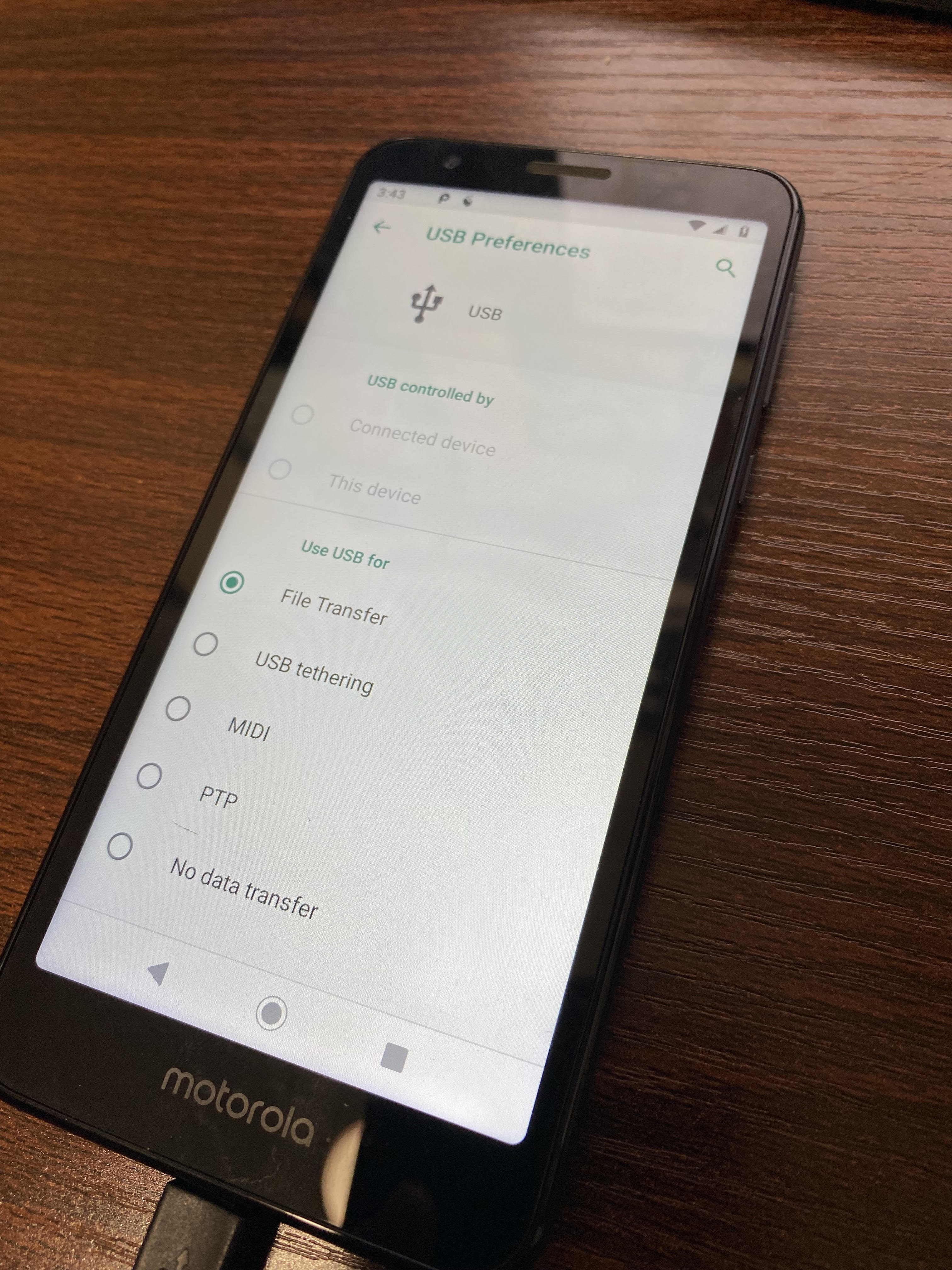
Ensure your device is connected to your computer and set to File Transfer.
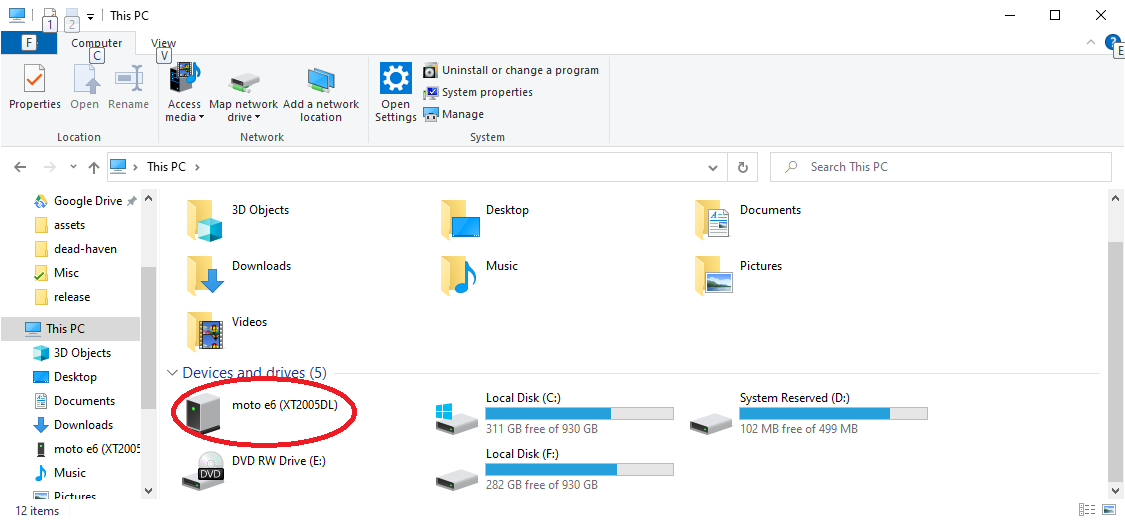
Find the connected Android device in your file browser and open it.

Drag and drop the complete soundboard folder onto the device.

Open CricketBoard and tap Select Soundboard.

Select the main soundboard folder, then press Choose. Do not open an individual numbered folder.
Under Second Button, select the number that should play when the lower button on the remote is pressed. If you choose 2, that button behaves like a double tap.
Enable the correct setting at the top of the app, then start clicking. Four taps will play a random sound from folder 4, and so on.
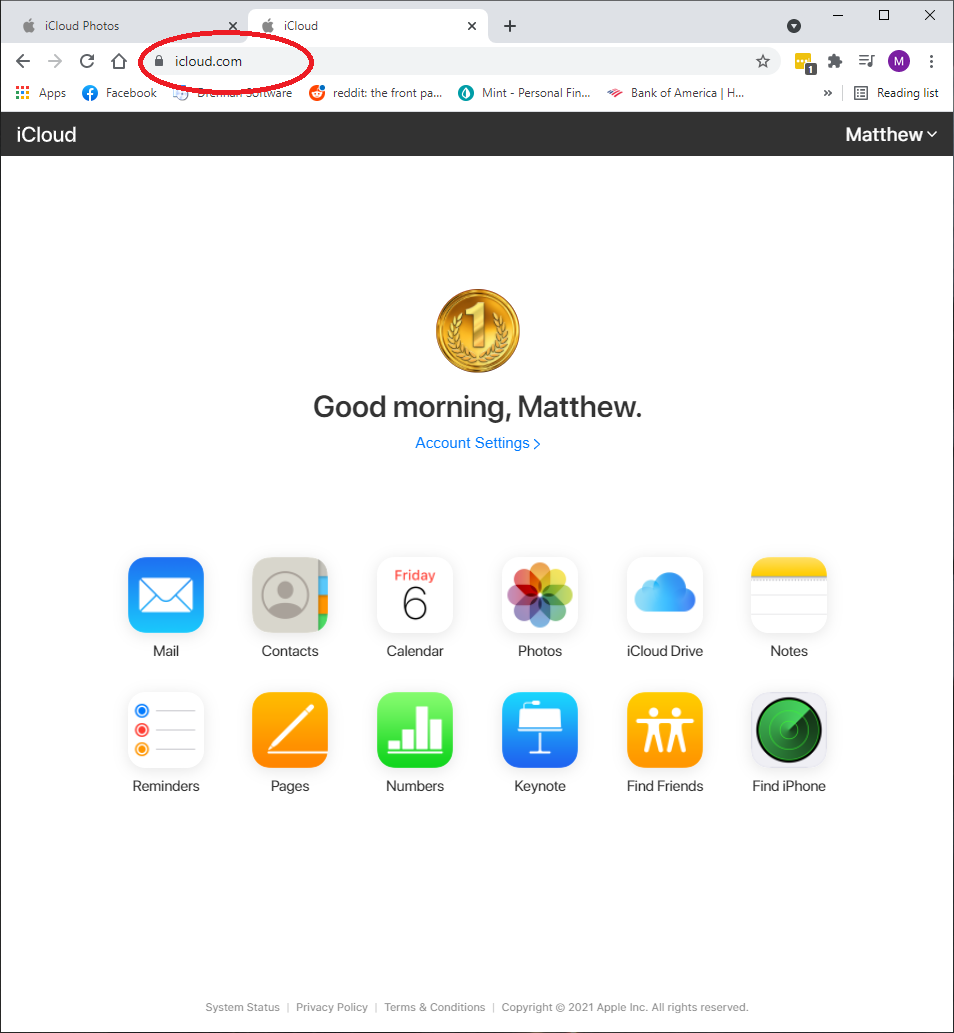
Navigate to iCloud.com in your browser on a Mac or PC.

Enter your iCloud Drive so you can upload the soundboard folder.
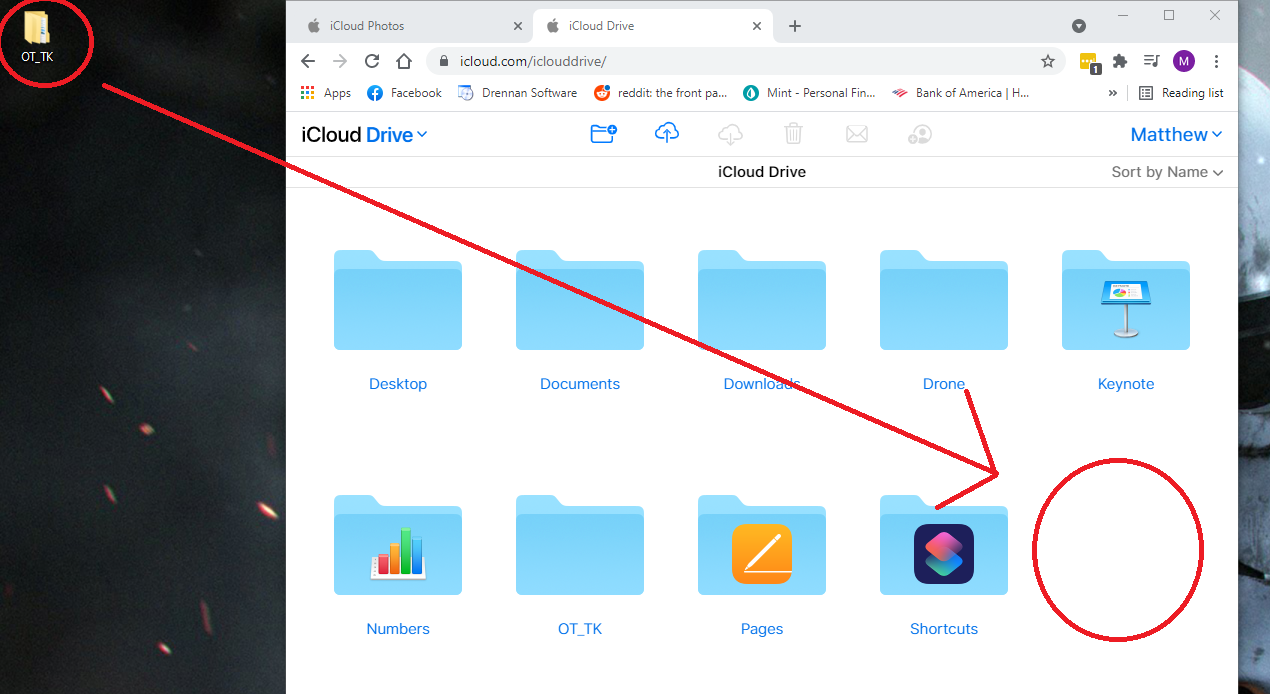
Drag and drop the entire soundboard folder into iCloud Drive.

On the iPhone, open the Files app.
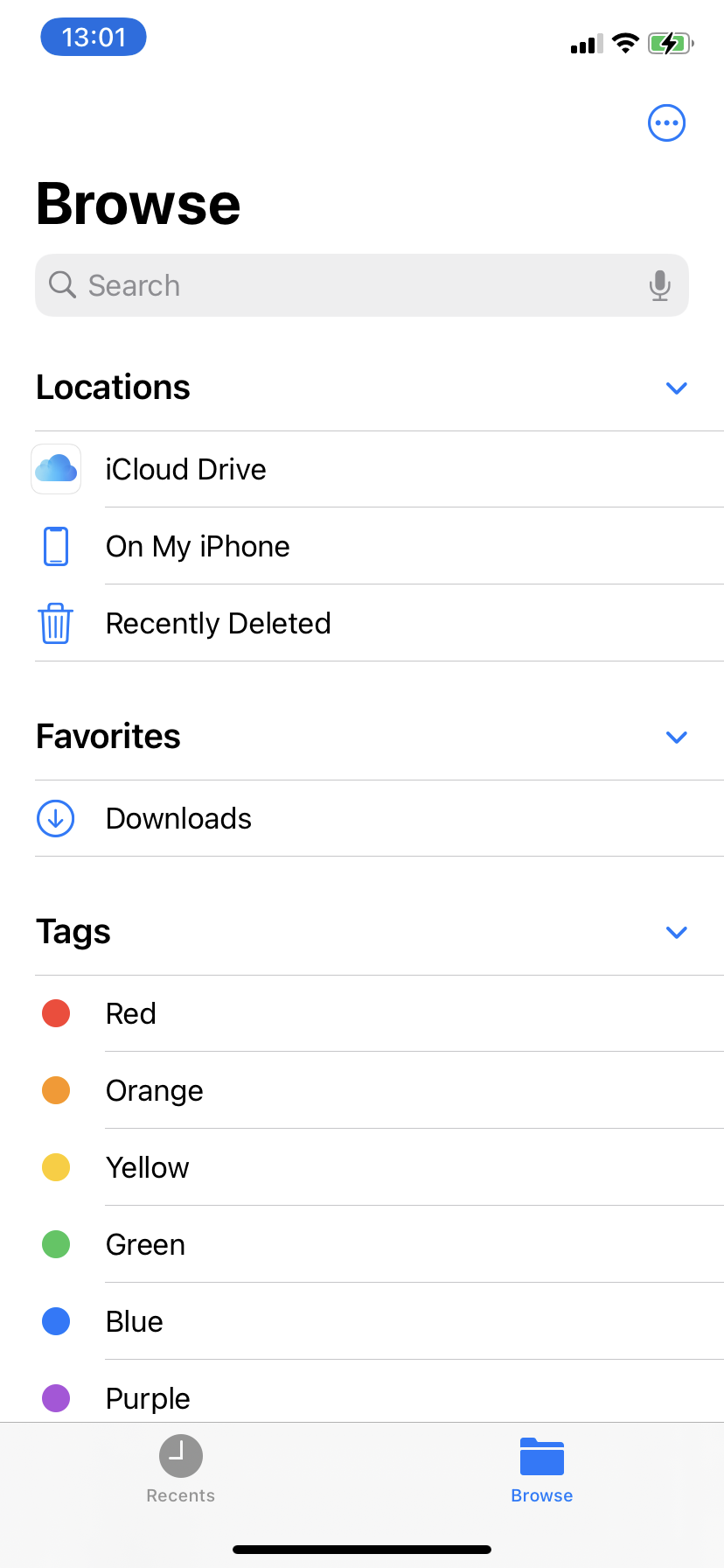
From Browse, open iCloud Drive to find the uploaded soundboard folder.

Confirm the soundboard folder is visible in iCloud Drive.
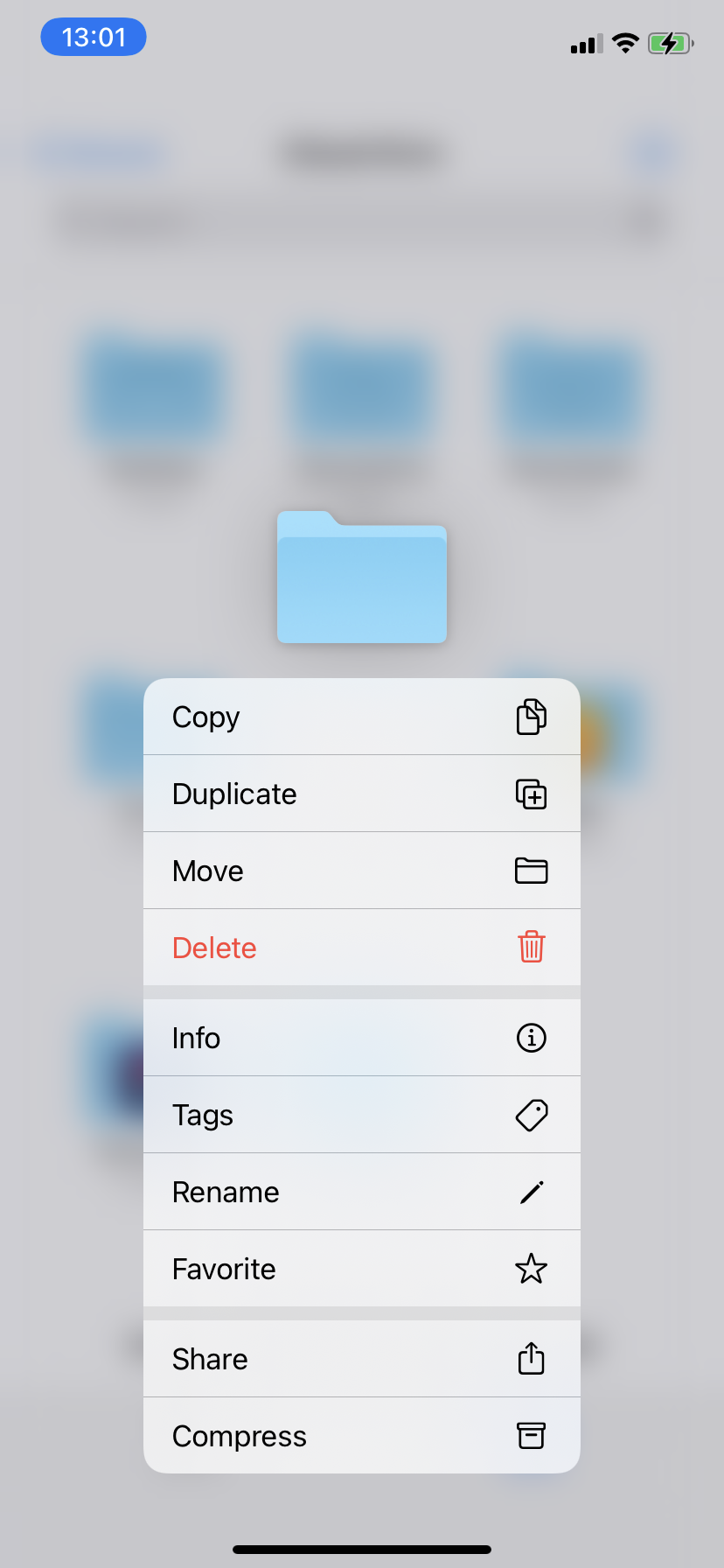
Press and hold the soundboard folder, then choose Copy.

Move to On My iPhone, press and hold in a blank area, then tap Paste.

Launch the app and choose Set Sound Board.

Select the folder you pasted to the device and press Done.
Enable the option that matches your device, then start tapping. Four taps will play a random sound from folder 4, and the same pattern applies to every other folder.
Unsure where to begin? Email us and we will help at no cost to you.

Name it anything you like. This is the folder you will later select in CricketBoard.

Create folders named only with numerals, such as 1, 2, 3, and 4. Place your audio files inside those numbered folders.
Bluetooth shutter remotes disconnect after inactivity to save battery. This is built into the clicker firmware. The recommended model typically disconnects after about two minutes without activity, so press any button to reconnect before a performance moment.
CricketBoard must remain open to interpret remote input. Use the dim and lock feature in the top-right corner to conserve battery life.
On iOS, save soundboards to the local device. Loading files directly from iCloud can crash the app.
If the iPhone is set to silent, audio will not play. Check the hardware mute state before using the app.
The app must stay open and active for click input to work. Keep CricketBoard in the foreground while performing.
Follow Us
Get product updates, clicker news, and release announcements.